

Custom REST APIs & MCP
Give your voice agents real-time capabilities to query databases, trigger webhooks, book appointments, and connect to Model Context Protocol (MCP) servers.
Overview
Tools empower your voice assistants to perform actions during live calls. When a caller asks a question requiring external data (e.g. "What is the status of order #9482?"), the LLM detects the intent, executes the tool, receives the JSON response, and speaks the answer naturally.
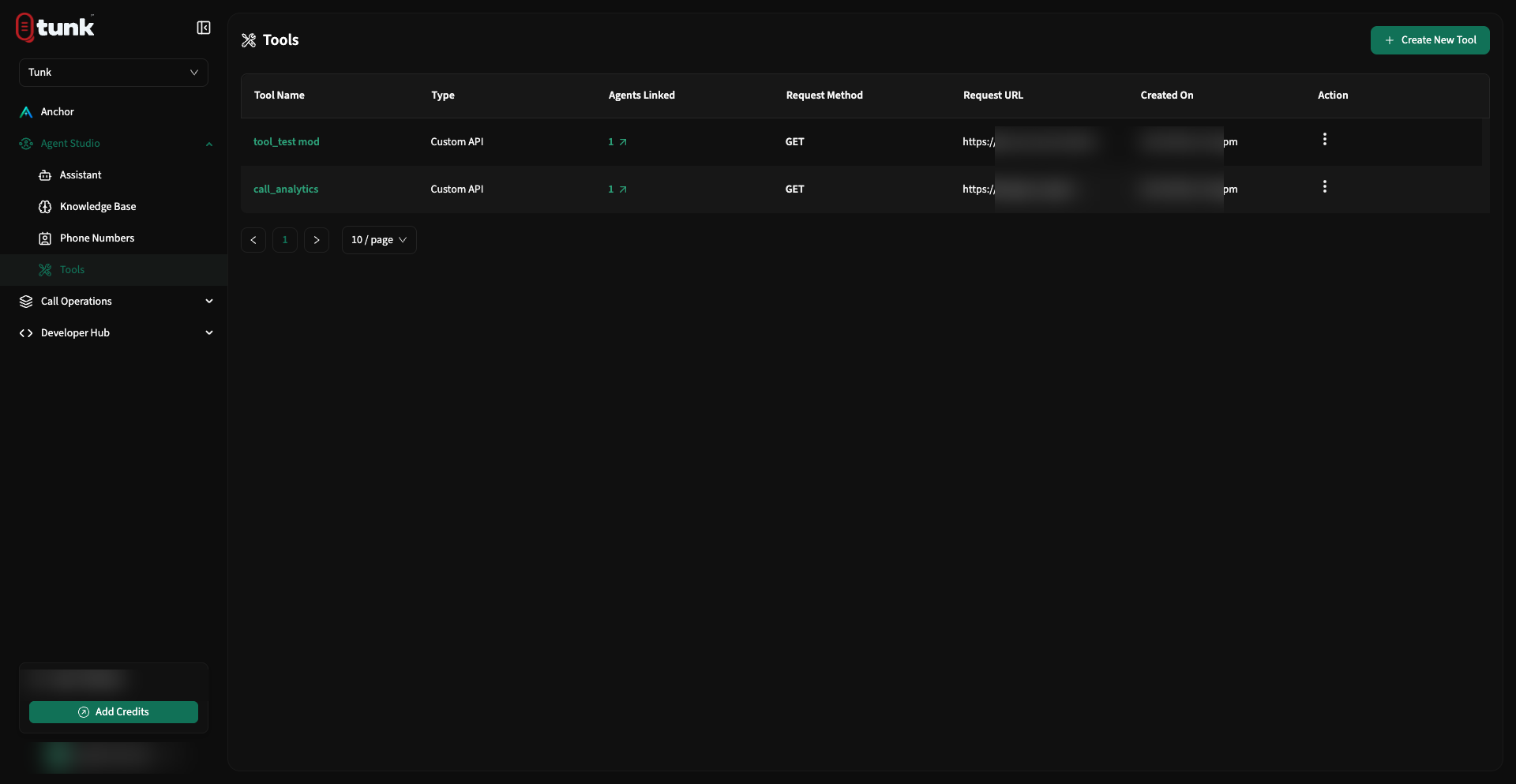 Tools Listing
Tunk supports two types of tool integrations:
- Custom REST API Tool: Directly call your existing HTTP endpoints (GET, POST, PUT, PATCH, DELETE).
- Model Context Protocol (MCP) Server: Connect standardized MCP servers over SSE or stdio transports.
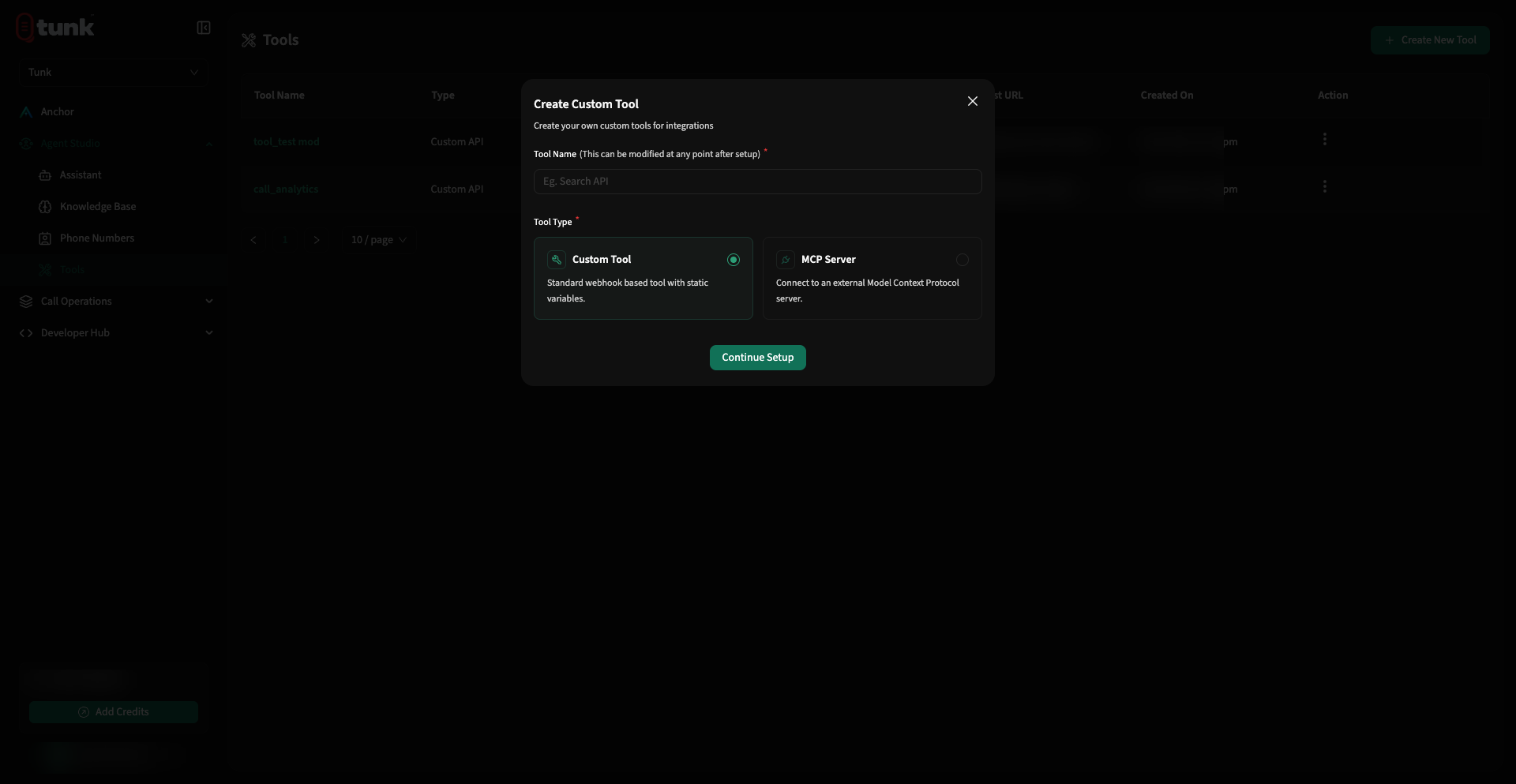 Choose Tool Architecture
Creating a Custom REST API Tool
Click Create New Tool and choose Custom Tool. Complete the 3-step configuration:
Step 1: Tool Profile
- Tool Name: Unique snake_case identifier (e.g.
check_order_status). - Tool Description: Critical instructions explaining to the LLM when and why this tool should be called.
Plain text
Call this tool when the customer provides their order ID to retrieve current shipping status, tracking number, and estimated delivery date.
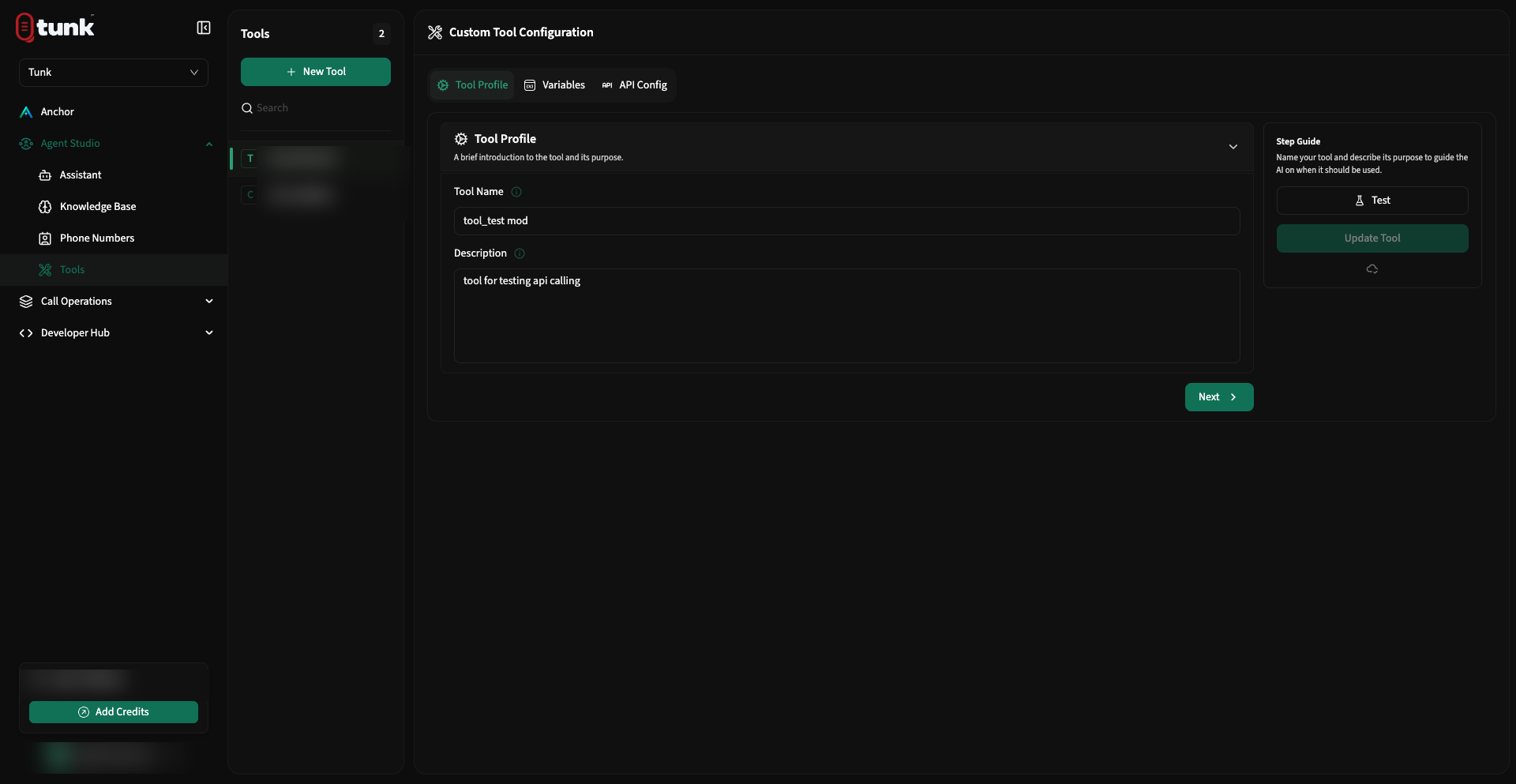 Tool Profile Setup
Step 2: Variables (Input Schema)
Define the arguments the LLM must extract from the customer's speech before invoking the tool:
- Variable Name: e.g.
order_id - Data Type:
string,number,boolean - Description: Guide the LLM on extraction constraints (e.g. "A 6-digit alphanumeric code like ORD123").
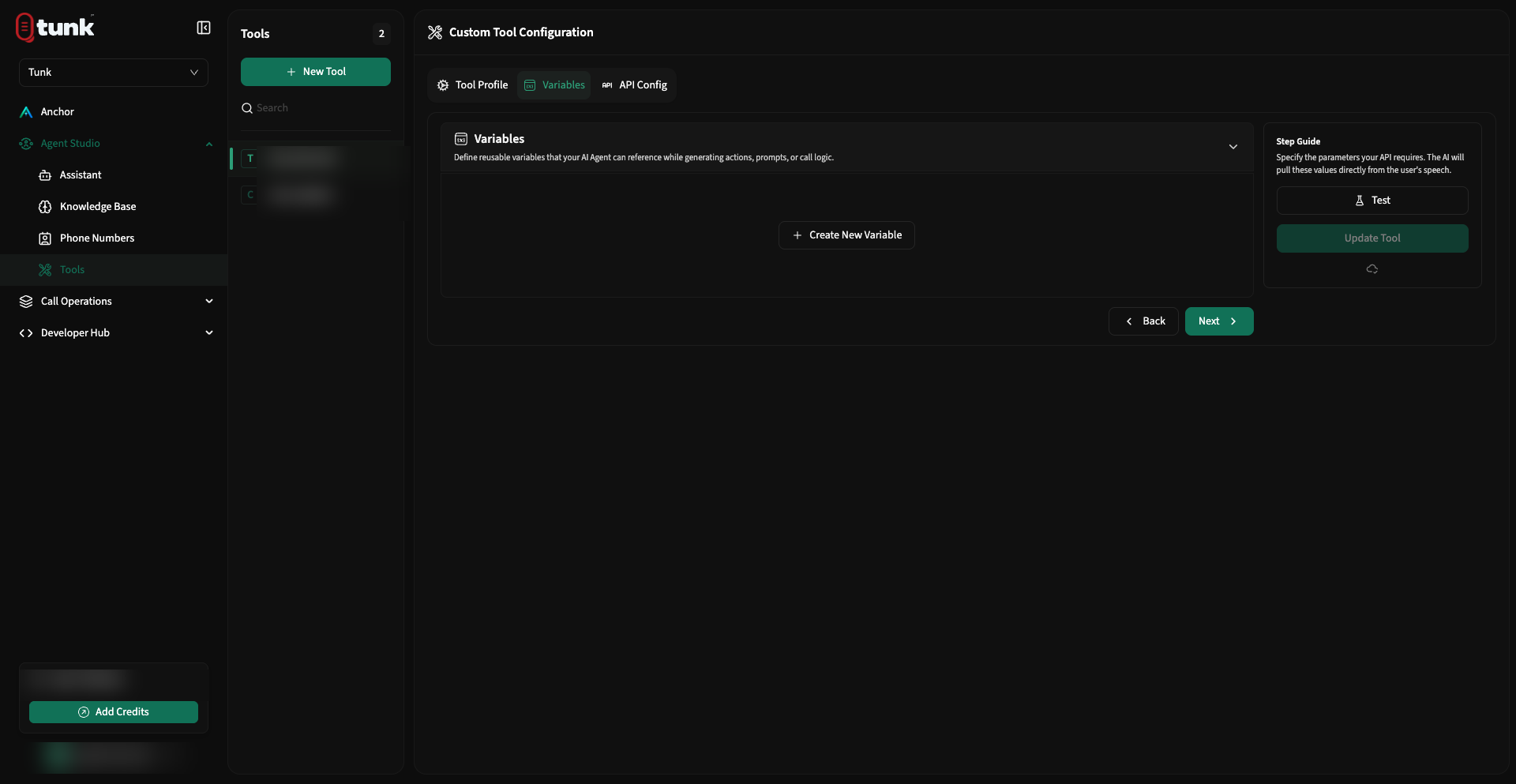 Tool Variables Setup
Step 3: API Config & Testing
Point the tool at your backend server and define the request template:
- HTTP Method:
GET,POST,PUT,PATCH, orDELETE. - Request URL: Supports dynamic variable interpolation in the path or query string:
Plain text
https://api.yourcompany.com/v1/orders/{order_id} - HTTP Headers: Add authorization headers or API keys:
Plain text
Authorization: Bearer YOUR_INTERNAL_SECRET Content-Type: application/json - Request Body (JSON Template): Format the body payload with interpolated
{variables}:JSON{ "order_id": "{order_id}", "source": "tunk_voice_call" } - Live Test Runner: Use the built-in test drawer to enter mock values for
{order_id}and click Test Endpoint to inspect the live response status and JSON payload immediately.
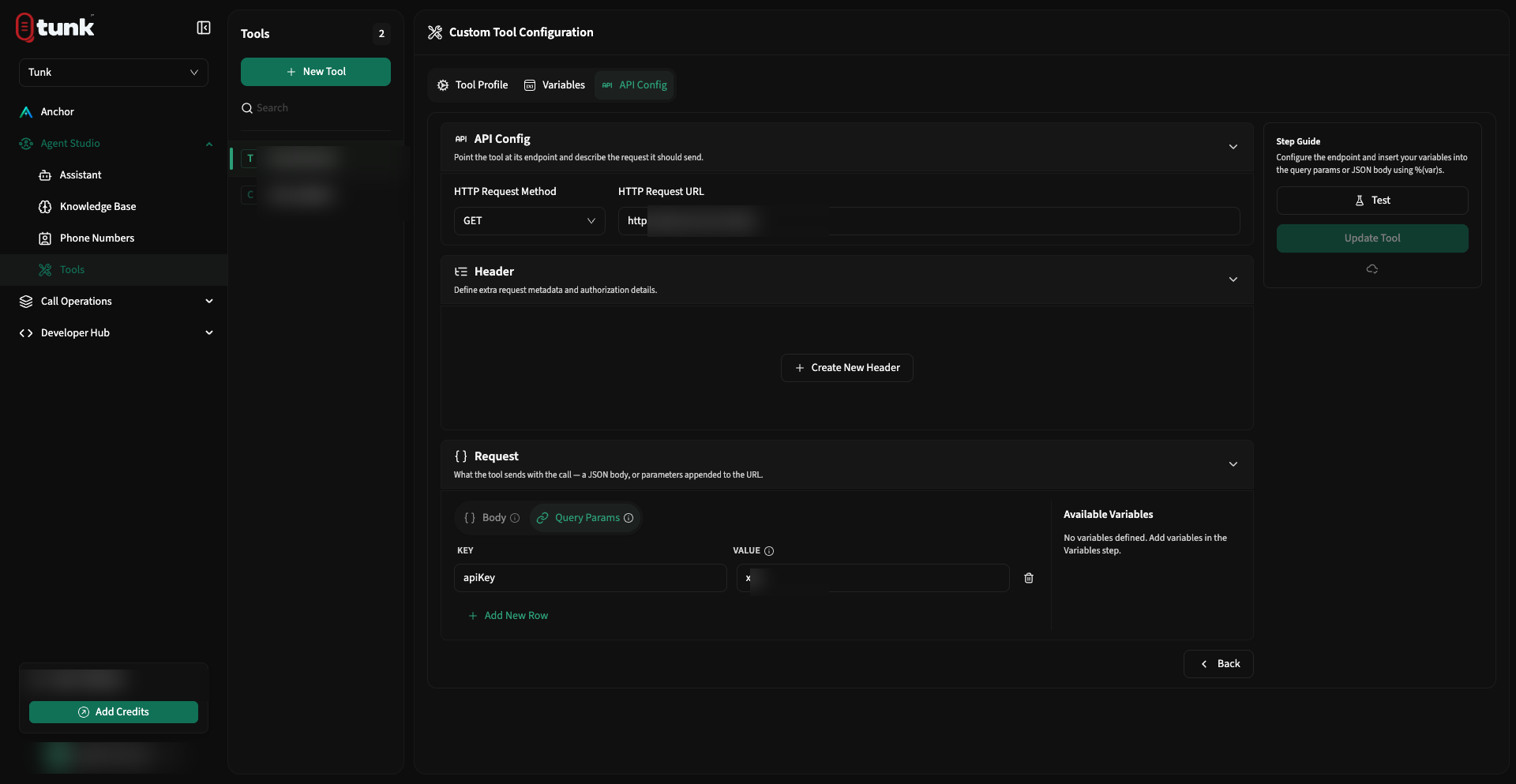 Tool API Config Setup
Model Context Protocol (MCP) Configuration
Tunk provides native support for Anthropic's Model Context Protocol (MCP), allowing you to connect remote MCP server tools seamlessly:
- In the creation modal, choose MCP Server.
- Server URL: Your hosted MCP endpoint (e.g.
https://mcp.yourcompany.com/sse). - Connection Timeout: Set maximum connection negotiation time in seconds.
- Server Authentication: Configure Bearer tokens or custom credentials.
- Once connected, all tools exposed by the MCP server become automatically selectable.
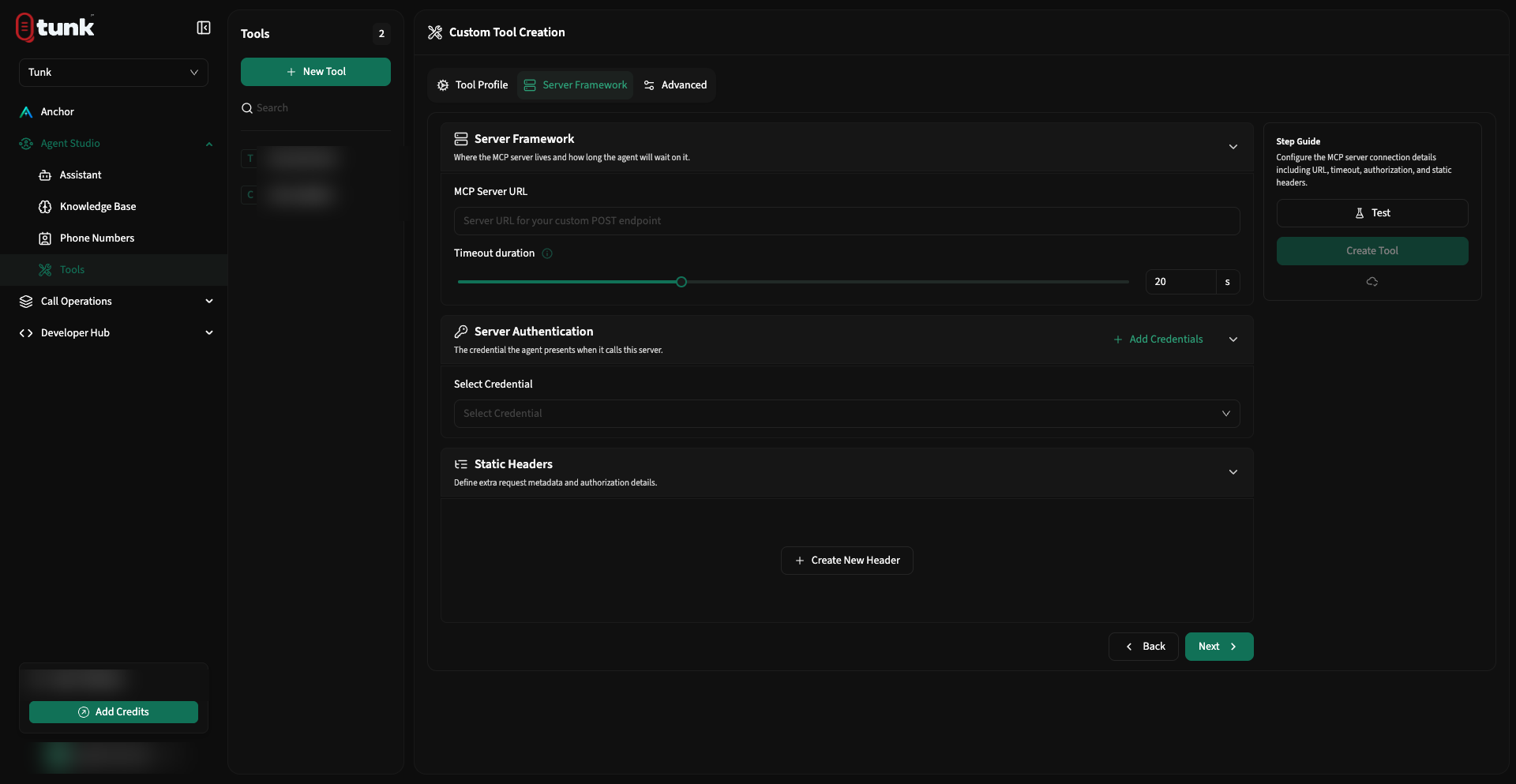 MCP Server Configuration
Linking Tools to Assistants
To equip an assistant with your custom tool:
- Open Assistant Studio and select your assistant.
- Navigate to the Resources tab.
- Check the box next to your tool in the Tools section.
- Click Save Config. The assistant can now invoke the tool during live calls!