

Phone Numbers & Telephony
Import carrier phone numbers from Twilio, Plivo, and Vonage, map them to voice assistants, and configure regulatory Do Not Disturb (DND) calling windows.
Overview
In Tunk.ai, phone numbers are managed through the Contacts hub (/voice-ai-dashboard/contacts). You can import numbers from your own telecom carrier accounts and link them directly to any AI assistant for inbound and outbound calls.
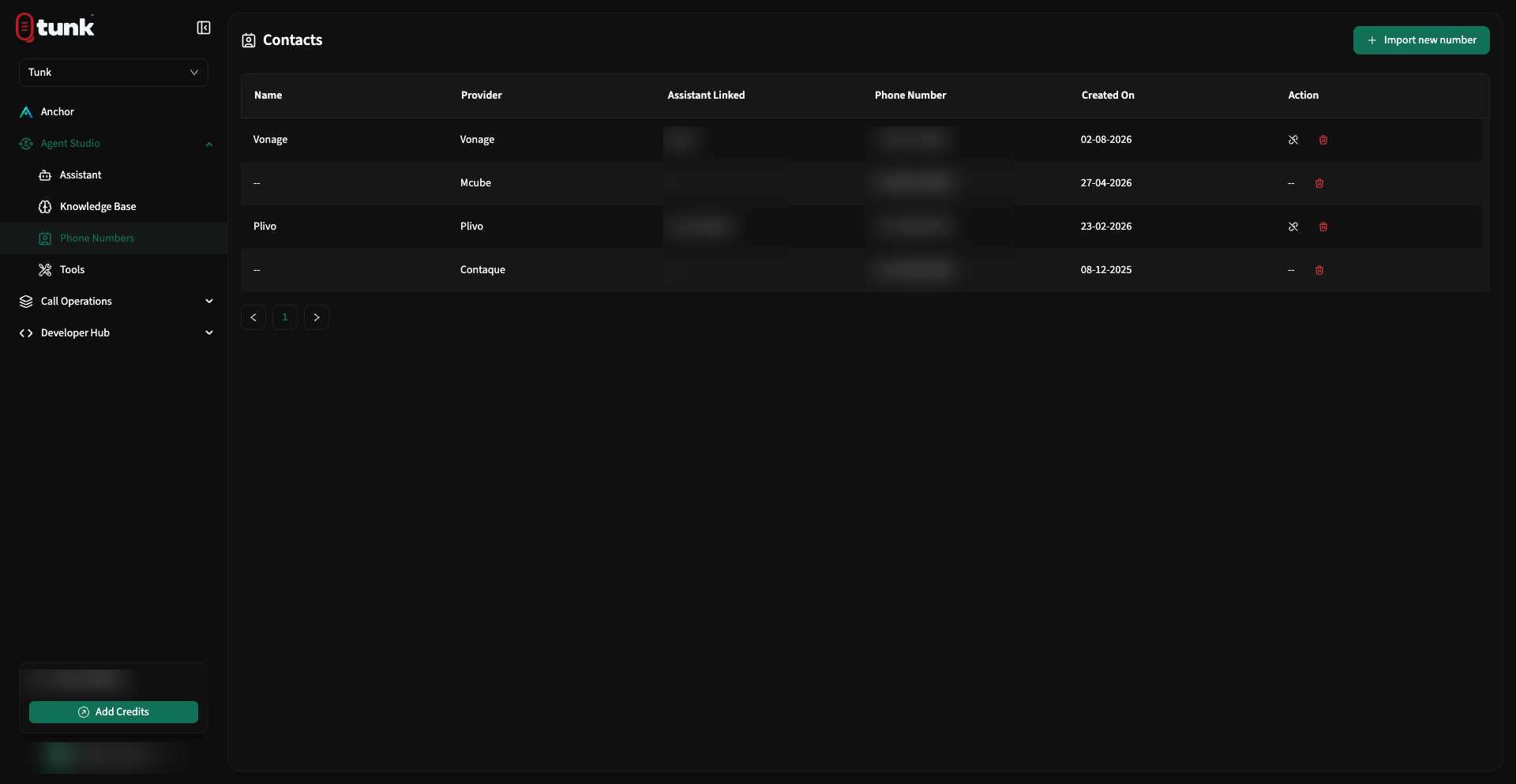 Phone Numbers Listing
Importing Phone Numbers
Click the Import Number button in the top action bar to connect numbers from your carrier:
1. Twilio
Connect phone numbers registered in your Twilio Console:
- Phone Number: Your E.164 phone number (e.g.
+14155550199). - Country Code: Select the matching country code.
- Account SID: Found in your Twilio Project Dashboard (starts with
AC...). - Auth Token: Your secret primary Twilio authorization token.
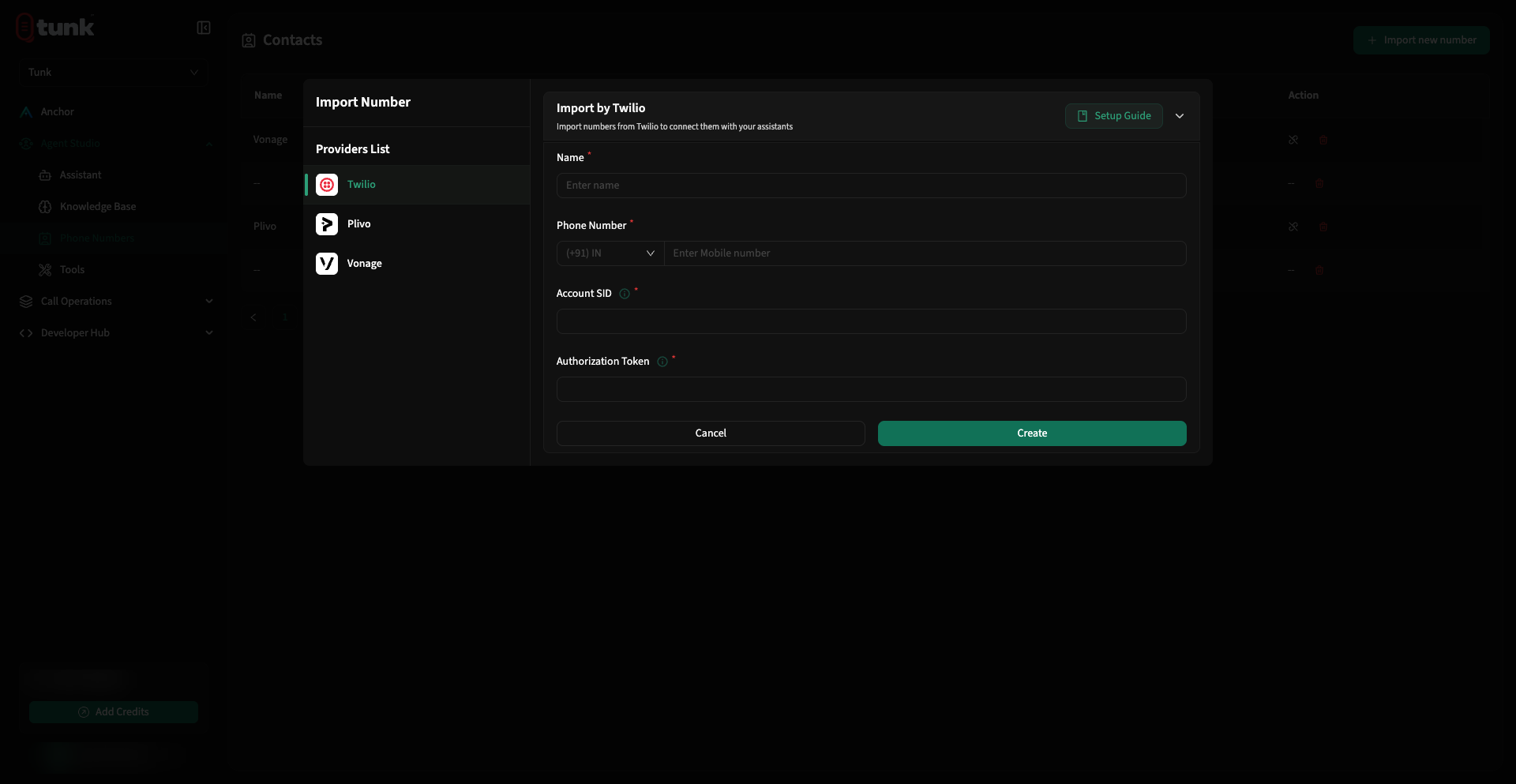 Import Twilio Phone Number
2. Plivo
Connect numbers provisioned through Plivo:
- Phone Number: Your E.164 phone number.
- Auth ID: Found on your Plivo Voice console overview.
- Auth Token: Your Plivo account authentication token.
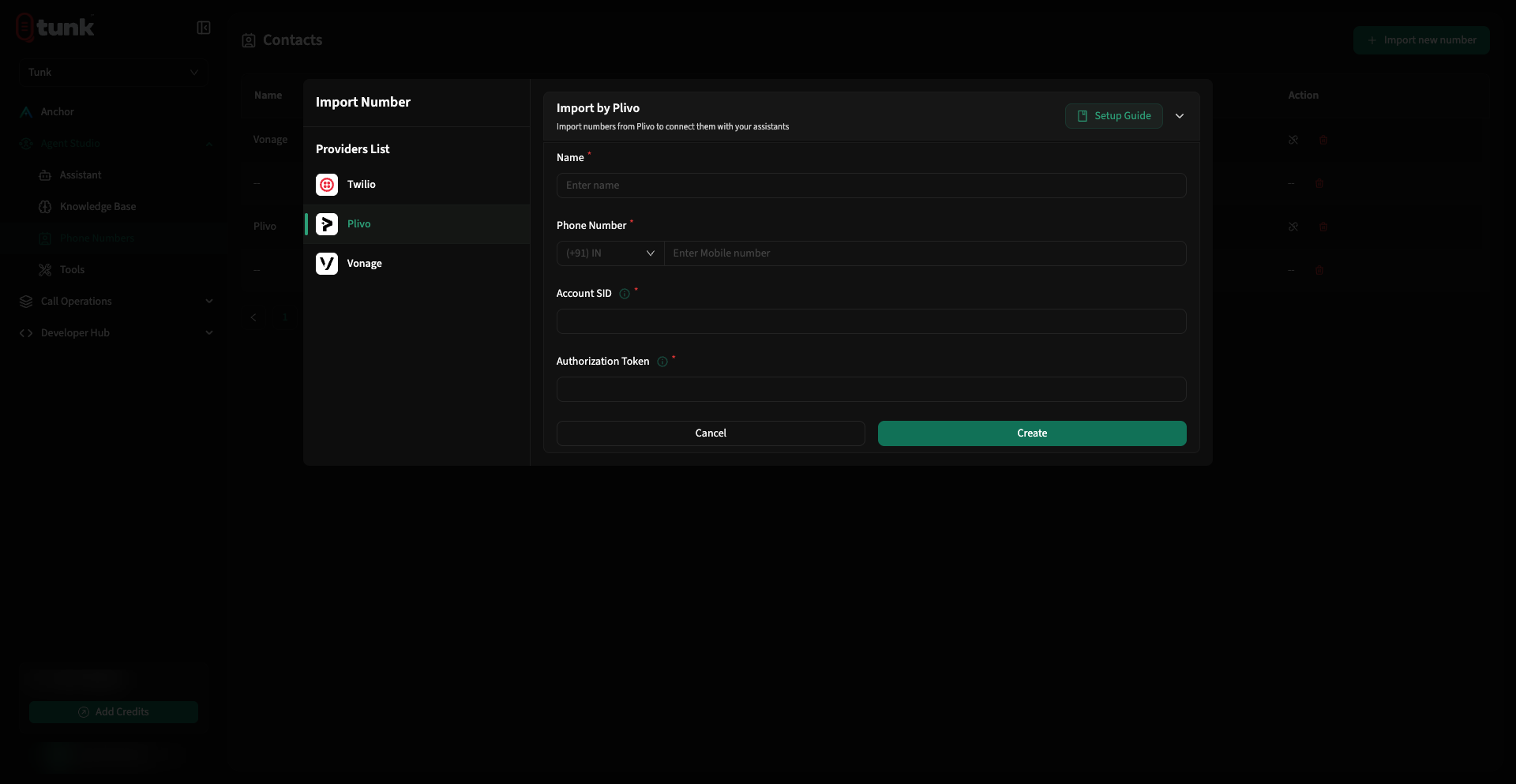 Import Plivo Phone Number
3. Vonage (formerly Nexmo)
Connect phone numbers provisioned through Vonage (dashboard.vonage.com):
- Phone Number: Your Vonage phone number in E.164 format.
- Account API Key: Your 8-character Vonage master API key (from CONTROL → API Settings).
- Account API Secret: Your Vonage master API secret token.
- Application ID: The UUID of your configured Vonage Voice Application (from BUILD → Applications).
- Private Key: Your Vonage application
.keyfile or RSA private key string.
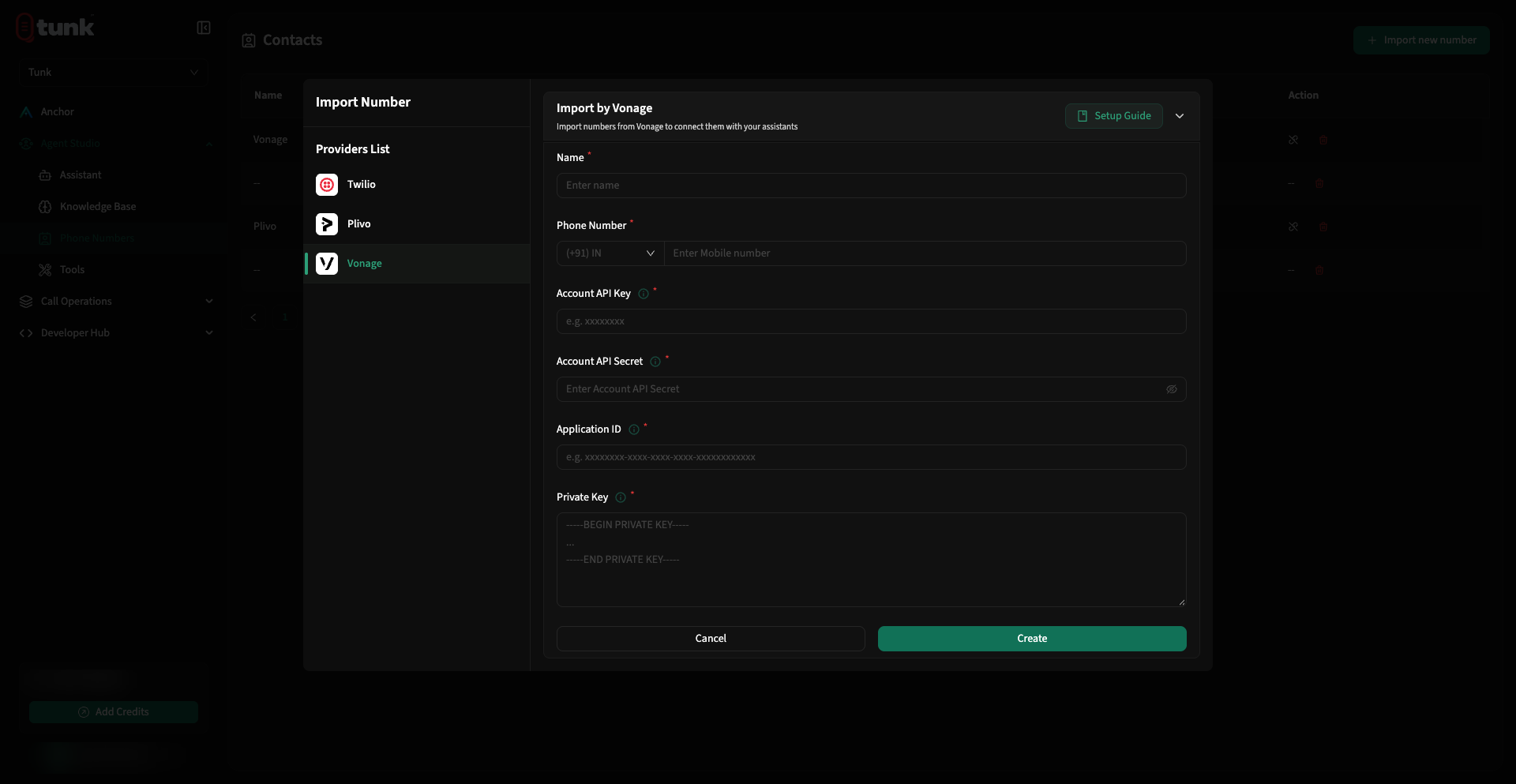 Import Vonage Phone Number
4. CarrierX
Connect enterprise SIP trunk numbers provisioned through CarrierX:
- Phone Number: Your E.164 phone number.
- Username / Auth SID: Your CarrierX account identifier.
- Password / Auth Secret: Your CarrierX authentication token.
Linking Phone Numbers to Assistants
Once imported, each phone number displays its carrier status and mapped assistant:
- Link Assistant: Click the Link icon in the actions menu, choose your AI assistant, and confirm. Inbound calls to this number will immediately be answered by that assistant. Programmatically, use
POST /v1/phone-mappingswith{"phone_number_id": "<uuid>", "agent_id": "<uuid>", "call_type": "inbound"}. - Unlink Assistant: Click the Unlink icon to detach an assistant without deleting the carrier credential.
- Delete Number: Permanently removes the number mapping from your Tunk workspace.
Do Not Disturb (DND) Compliance Rules
Ensure regulatory compliance (TCPA, TRAI, CRTC) by setting automated calling blackout periods:
- Navigate to Settings → DND.
- Configure your allowed calling windows (e.g., 9:00 AM to 8:00 PM local recipient time).
- Any outbound campaign or API-triggered call scheduled during quiet hours will automatically queue until the next allowed window.
Manage DND Programmatically via REST API
You can add, list, and remove numbers from your Do Not Call registry using the public API:
Add a Number to DND
curl -X POST "$TUNK_BASE_URL/phone-numbers/dnd" \
  -H "X-Api-Key: $TUNK_API_KEY" \
  -H "X-Workspace-Id: $TUNK_WORKSPACE_ID" \
  -H "Idempotency-Key: $(uuidgen)" \
  -H "Content-Type: application/json" \
  -d '{
    "phone_number": "+14155552671"
  }'
List DND Blocked Numbers
curl "$TUNK_BASE_URL/phone-numbers/dnd" \
  -H "X-Api-Key: $TUNK_API_KEY" \
  -H "X-Workspace-Id: $TUNK_WORKSPACE_ID"
Remove a Number from DND
curl -X DELETE "$TUNK_BASE_URL/phone-numbers/dnd/<dnd_id>" \
  -H "X-Api-Key: $TUNK_API_KEY" \
  -H "X-Workspace-Id: $TUNK_WORKSPACE_ID"