

Automate high-volume outbound dialing campaigns with custom CSV lists
Outbound Campaigns & Batch Calling
Automate high-volume outbound calling campaigns by uploading CSV contact lists, mapping dynamic prompt variables, and scheduling batch runs.
Overview
The Campaigns module (also known as Batch Calling) enables you to place hundreds or thousands of automated outbound voice calls simultaneously. Common use cases include:
- Appointment confirmation and rescheduling
- Payment reminders and past-due account alerts
- Post-service satisfaction surveys
- Outbound sales lead qualification
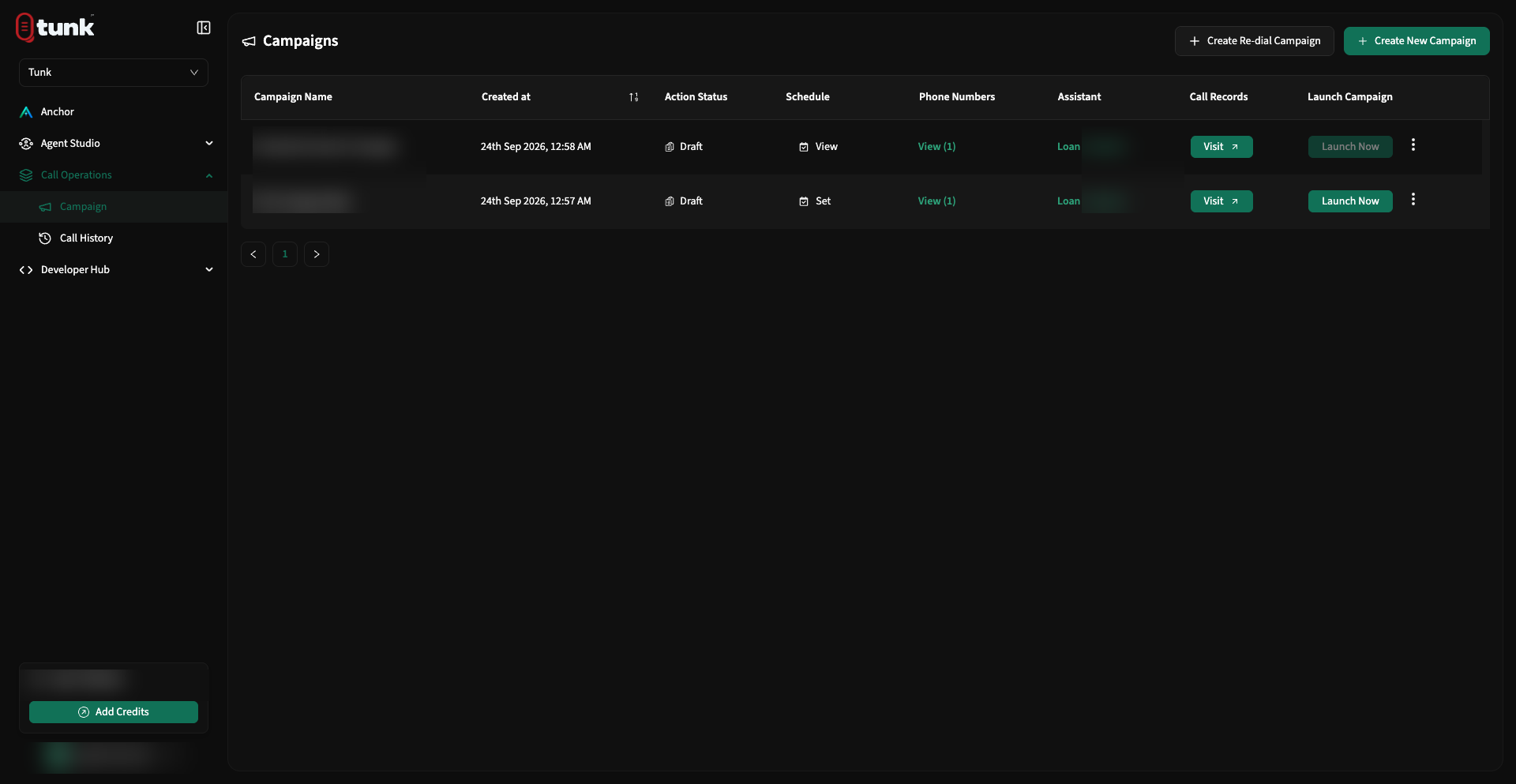 Campaigns Dashboard
Creating an Outbound Campaign
Click Create Campaign in the upper-right corner of the campaign dashboard:
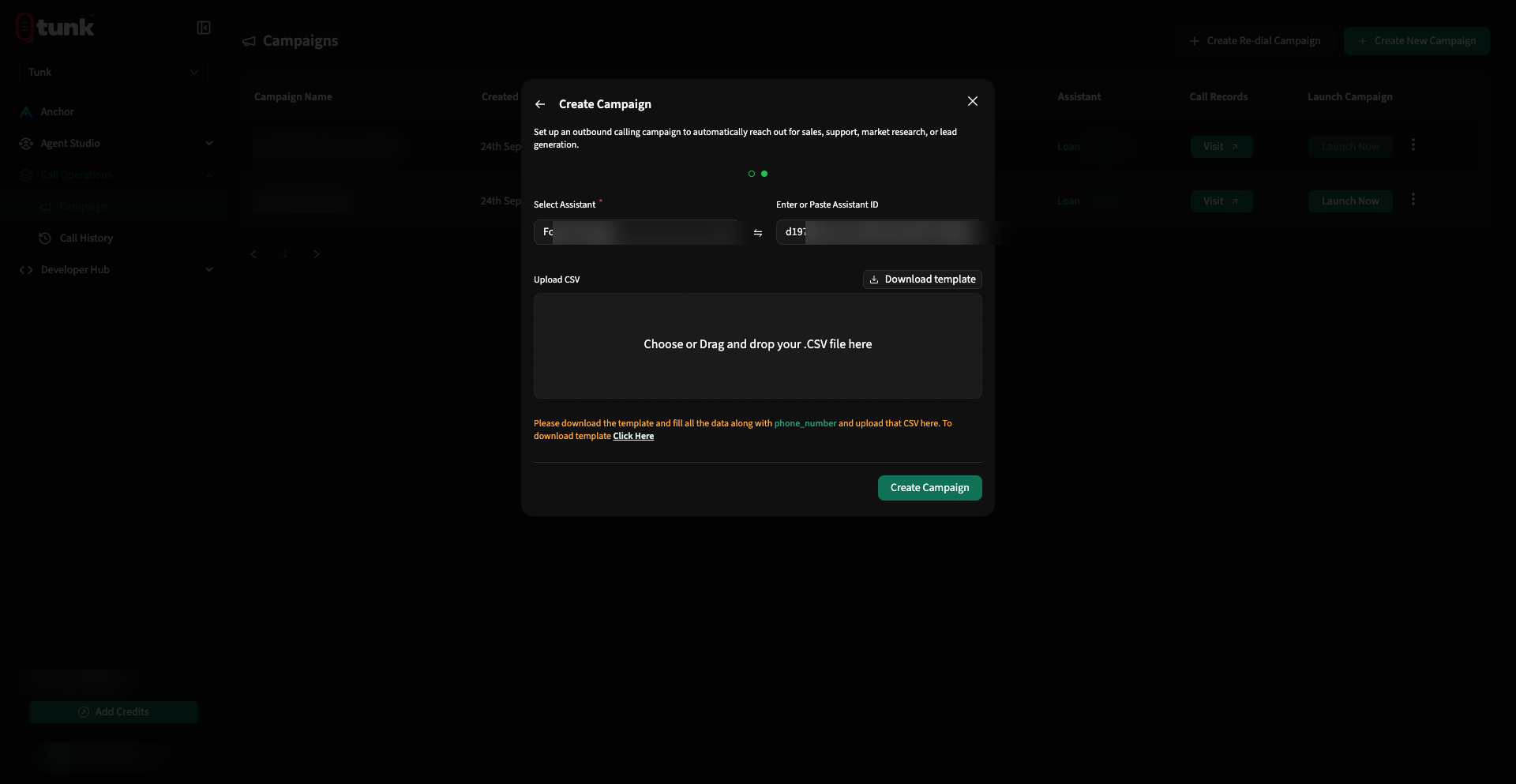 Create Campaign Modal
Step 1: Campaign Setup & Assistant Selection
- Campaign Name: Enter a descriptive name (e.g. Q4 Service Due Follow-up).
- Assistant: Select the AI assistant that will handle the calls. Ensure this assistant has an assigned outbound phone number.
Step 2: Preparing Your CSV Contact File
Download the CSV template or format your own spreadsheet with standard headers:
csv
phone_number,customer_name,appointment_date,service_type,advisor_name
+14155552671,Sarah Jenkins,2026-10-14,Brake Inspection,Mike Ross
+14155559812,David Miller,2026-10-15,Oil Change,Jessica Pearson
+14155553421,Emily Vance,2026-10-16,Tire Rotation,Rachel Zane
CSV Rules:
phone_numberis mandatory and must be in full international E.164 format (e.g.+1...or+91...).- Any additional columns automatically become dynamic prompt variables (e.g.
{customer_name},{appointment_date}).
Step 3: Column-to-Variable Mapping
When you upload the CSV, Tunk displays a visual column mapper:
- Map your CSV headers to the assistant's registered prompt variables.
- The assistant's opening greeting and prompt will automatically populate with each contact's custom row data when dialed.
Step 4: Scheduling & Execution
- Launch Now: Begins dialing immediately according to your concurrent call capacity.
- Schedule for Later: Specify an exact date, time, and timezone to trigger the campaign.
- All outbound dialing automatically respects your configured Do Not Disturb (DND) rules to prevent calling outside approved business hours.
Real-Time Campaign Monitoring & Retries
Once launched, track campaign progress live on the dashboard:
- Total Contacts: Total rows processed.
- Completed: Calls answered and successfully concluded.
- Voicemail / No Answer: Calls that reached voicemail or rang out.
- Failed / Busy: Carrier busy signals or invalid numbers.
- Retry Failed Calls: Click Retry Campaign to re-dial all unanswered and failed contacts with a single click.
Need help? Reach out on our support portal.